
VBOX Touch RTK / VBOX Touch
(VBTOUCHR / VBTOUCH-V2 / VBTOUCH-V3)
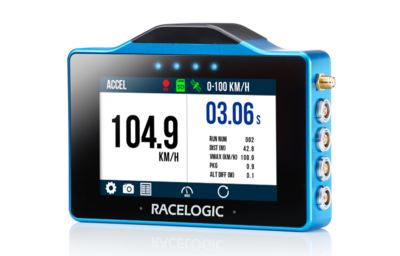
This guide shows how to set up the unit and start logging data.
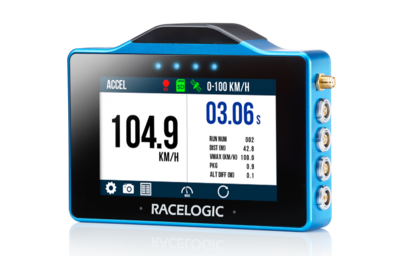
This guide shows how to set up the unit and start logging data.
Before You Start
What is in the box?
Typical kit includes:
- VBOX Touch or VBOX Touch RTK unit
- Power cable (vehicle supply)
- SD card
- GNSS antenna
- Mounting solution
- Protective rubber cover
- Carry case
Setup
1. Power the Unit
Connect to vehicle power (12 V supply)
The unit will power on automatically.
On startup, the unit will:
- Search for satellites
- Detect the SD card
- Open the mode selection screen (first use only)
2. Insert the SD Card
Insert a FAT32-formatted SD card into the unit.
All data is recorded directly to the SD card.
For best performance, use a Class 10 card or higher.
3. Connect the GNSS Antenna (if required)
While the internal antenna may be sufficient in open environments, the external antenna improves signal reliability.
Connect the GNSS antenna to the Antenna port and place it on the vehicle with a clear view of the sky.
You can find more information about best practices in the GNSS Antenna Placement article.
4. Mount the Unit
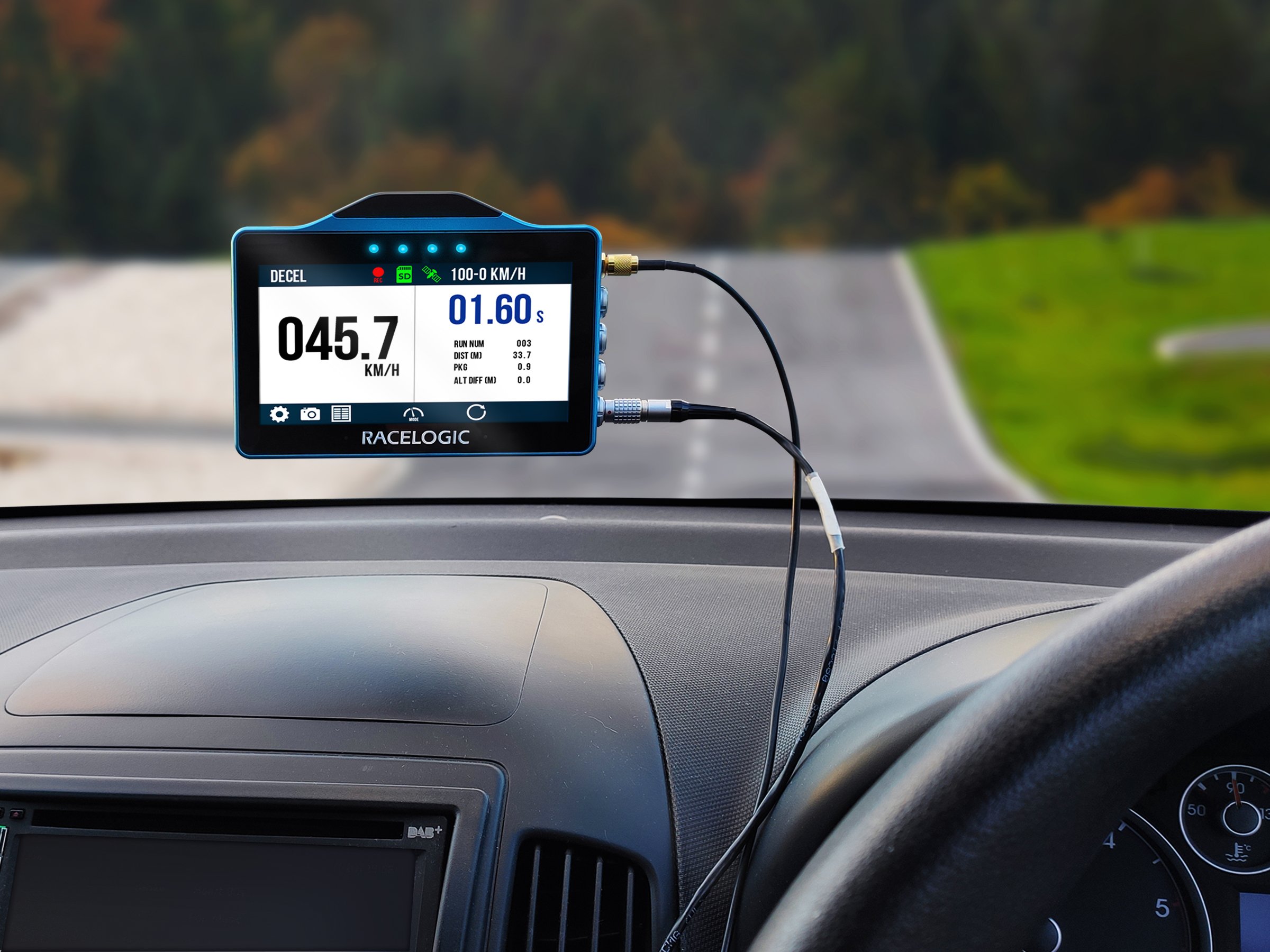
Mount the unit securely using the supplied mount.
Ensure the screen is clearly visible during use.
RTK (VBOX Touch RTK Only)
RTK functionality requires additional setup.
Refer to the full VBOX Touch User Guide for instructions.
Display Modes
Select a display mode on first startup.
Use the touchscreen to change modes and settings.
Logging Data
Automatic Logging
The unit records data to the SD card when logging.
By default, logging starts automatically when the vehicle moves.
Manual Logging
Tap the SD card icon on the display to start and stop logging manually.
Manual logging overrides automatic logging.
CAUTION
Do not remove the SD card while the Logging Status Indicator is visible on the VBOX Touch screen.
This indicates that the unit is actively logging and writing data to the SD card. Removing the card during this process may result in data loss or file corruption, and the SD card may need to be repaired before it can be used again.
Always confirm that logging has stopped before removing the SD card.
Check it is Working
The unit is ready when:
- Live speed or position data is visible
- The SD card icon is green (ready)
- The recording icon appears when logging
Result
Once set up, the unit will:
- Display live performance data.
- Record all data to the SD card.
- Allow you to switch between test modes without reconfiguration.
Data Analysis
Recorded sessions are saved as .vbo files on the SD card.
These can be analysed using VBOX Test Suite.