
NOTE
The functionality described on this page applies to the default Performance App.
Behaviour may differ if a different app is installed.
Accessing the Diagnostics Information
Tap Settings → Diagnostics (any Display Mode).
VBOX Touch will display the Diagnostics screen.
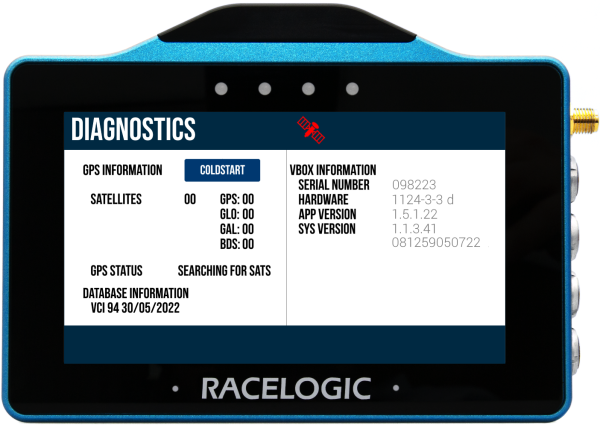
This screen displays basic GPS receiver and VBOX information.
Return to the selected Display Mode screen, by tapping on the Exit button in the bottom left corner.
Available Information and Options
Satellite Status
The quickest way to determine the satellite status of the VBOX Touch unit, is to look at the Satellite Status icon in the bar at the top of the screen. The colour and behaviour of the Satellite Status icon will indicate the unit's satellite or RTK correction status depending on the VBOX Touch variant and configuration.
Refer to the Satellite Status section on the User Interface page for more information about the different statuses.
VARIANT LIMITATION
RTK Correction statuses are only available on VBOX Touch RTK units.
GPS Information
Coldstart
Sometimes GPS and GNSS devices need to restart the satellite acquisition process. This is most common when the unit has not been used for a long time or it has had a significant change of location leading to issues when trying to acquire a satellite lock.
You can force the VBOX Touch to perform a GPS coldstart by tapping the Coldstart button. This will make the GPS receiver in VBOX Touch clear any data currently stored in its internal memory and restart the search for satellites.
VBOX Touch will emit an audible notification and display a ‘PLEASE WAIT’ message with a countdown on the screen. When the countdown has finished, the number of satellites will be displayed as '00' and the GPS status will show ‘SEARCHING FOR SATELLITES’ until the the unit has acquired satellite lock.
This whole process takes approximately 30 seconds.

Sometimes GPS and GNSS devices need to restart the satellite acquisition process. This is most common when the unit has not been used for a long time or it has had a significant change of location leading to issues when trying to acquire a satellite lock.
You can force the VBOX Touch to perform a GPS coldstart by tapping the Coldstart button. This will make the GPS receiver in VBOX Touch clear any data currently stored in its internal memory and restart the search for satellites.
VBOX Touch will emit an audible notification and display a ‘PLEASE WAIT’ message with a countdown on the screen. When the countdown has finished, the number of satellites will be displayed as '00' and the GPS status will show ‘SEARCHING FOR SATELLITES’ until the the unit has acquired satellite lock.
This whole process takes approximately 30 seconds.

Satellites
This field displays how many satellites the receiver is currently using from each constellation, including GPS, GLONASS, Galileo and BeiDou.
GPS Status
The GPS Status field displays the current GPS lock status of the unit.
When VBOX Touch is searching for satellites to use, the GPS status will be SEARCHING FOR SATELLITES.
When it has acquired a satellite lock, one of the following statuses will be displayed:
- STANDALONE: Position computed from GNSS only.
- CODE DIFF: Position computed from assisted SBAS corrections.
- RTK FLOAT: Position computed from GNSS corrected by RTK. Float means the GNSS receiver is still calculating the integer ambiguity, and that there will be a small error present in the position computation at this time.
- RTK FIXED: Position computed from GNSS corrected by RTK. Fixed means the integer ambiguity is established and the optimum position correction is applied resulting in sub-2 cm relative accuracy in good conditions.
VARIANT LIMITATION
The RTK FIXED and RTK FLOAT statuses are only available on VBOX Touch RTK units.
VBOX Information
The VBOX Information section displays the unit's serial number, the hardware version, and the installed firmware version. This information is useful if you need to troubleshoot a potential issue with the VBOX Touch unit.