Overview
VBOX Test Suite gives users the ability to save the full file, export a bespoke report, export the specific test settings or export the geographic data of the GPS trace. These files can then be used in third-party applications or be re-imported into VBOX Test Suite to support other data. This page will show you how to access and fully utilise these functions in the VBOX Test Suite software.
Export Full File
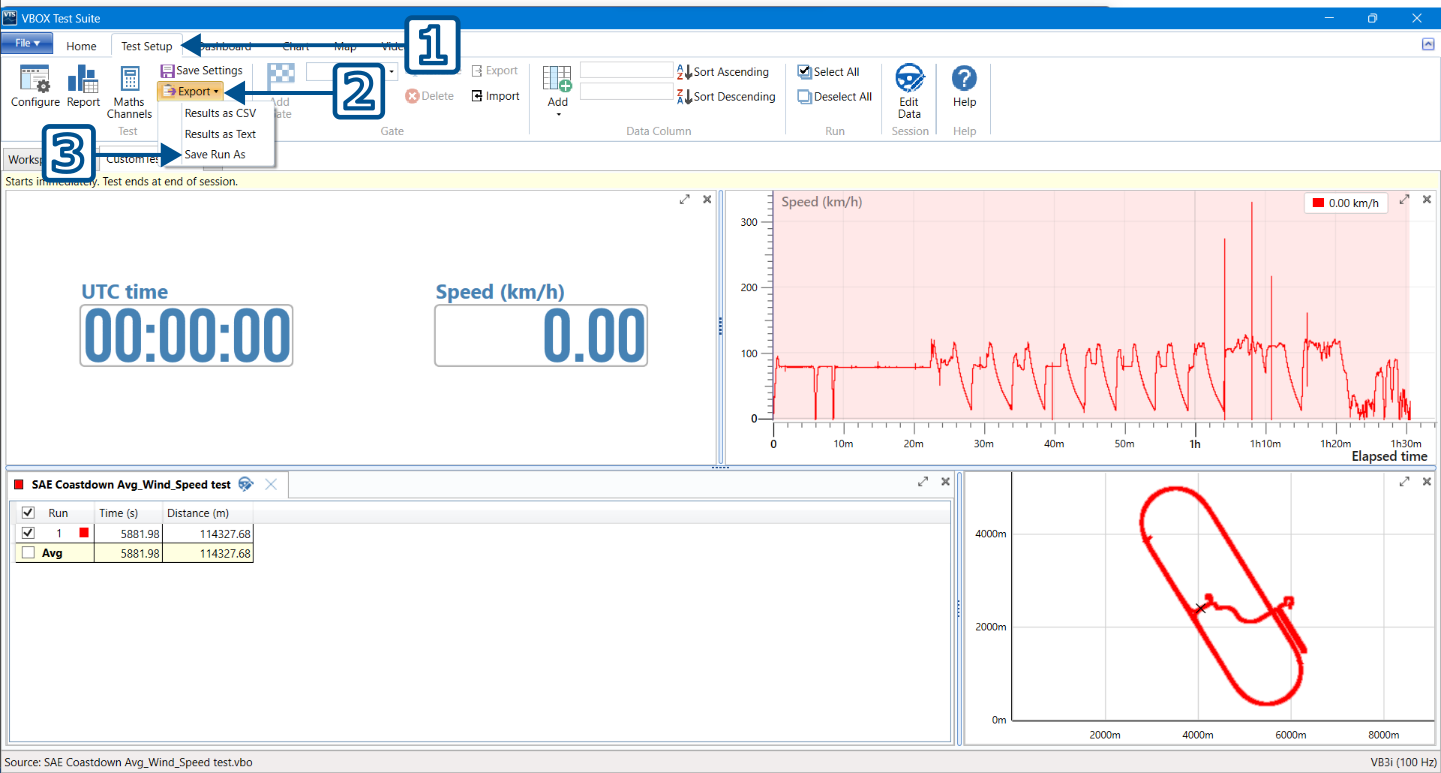
Menu Directions: File -> Save as
File Options: .VBO and .CSV
Function: Save the full file, including data, settings and results. You can then reopen it in VBOX Test Suite or in Excel for a more detailed analysis.
Export Settings File
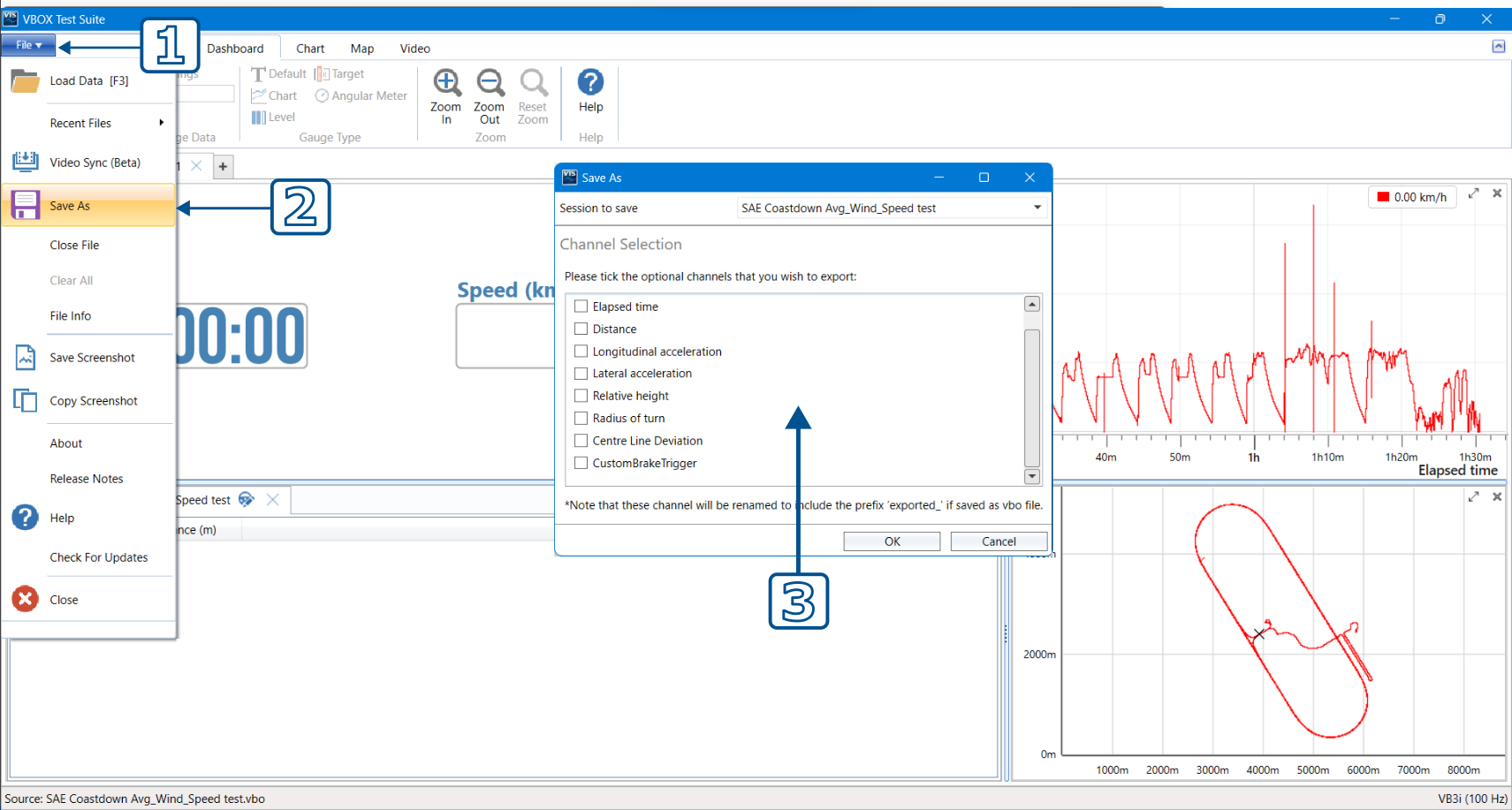
Menu Directions: Home -> Save
File Options: .VBTS only
Function: Export only the settings in the current session. This covers test settings and superficial settings, including but not limited to, layouts, personal preferences, and colours.
Export Geographic Data
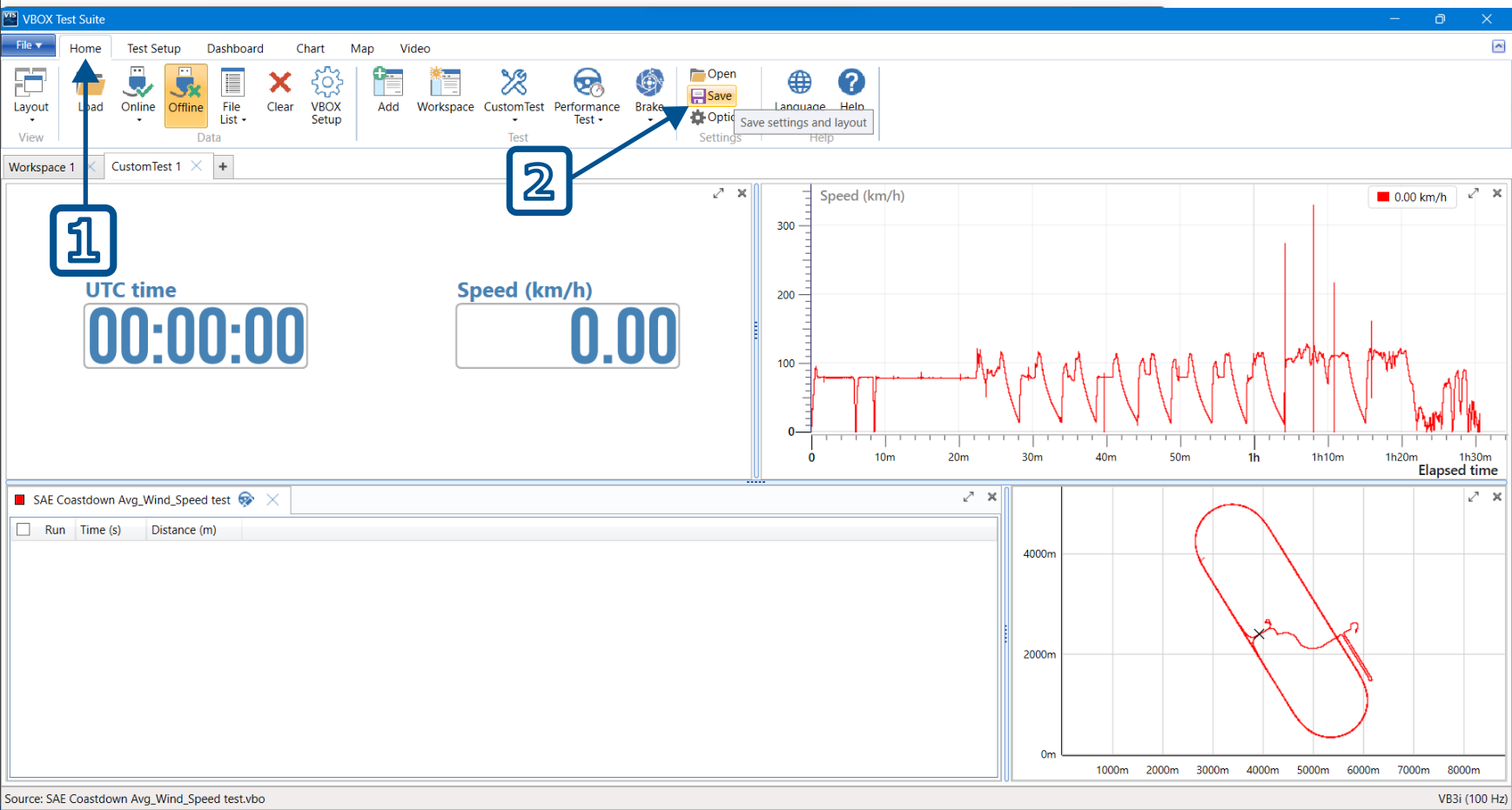
Menu Directions: Map -> Export to .kml
File Options: .KML only
Functions: Exports only the geographic data, which is compatible with Google Earth. This option will give you the ability to view the vehicle GPS trace in the Google Earth application.
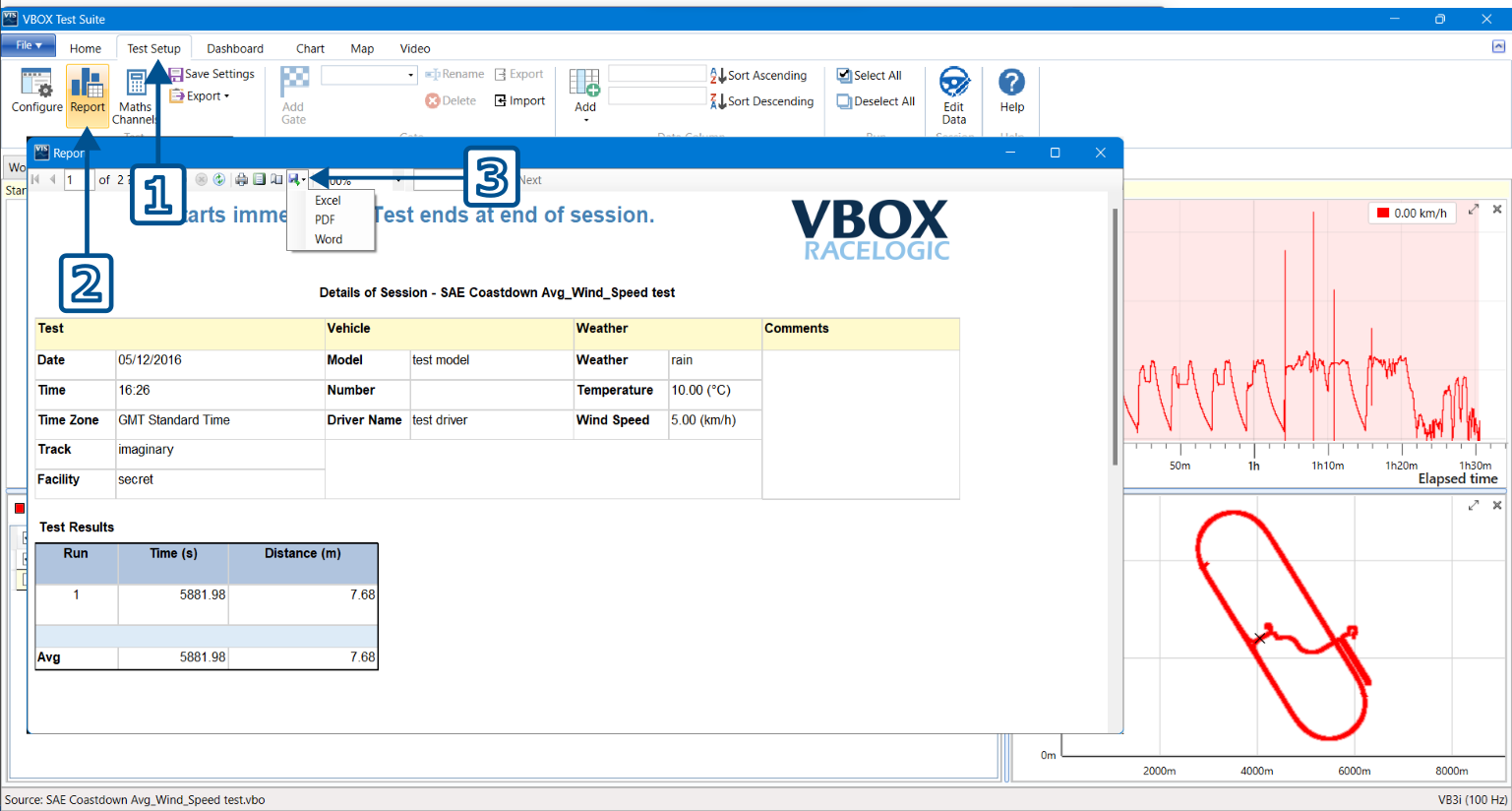
Export Report
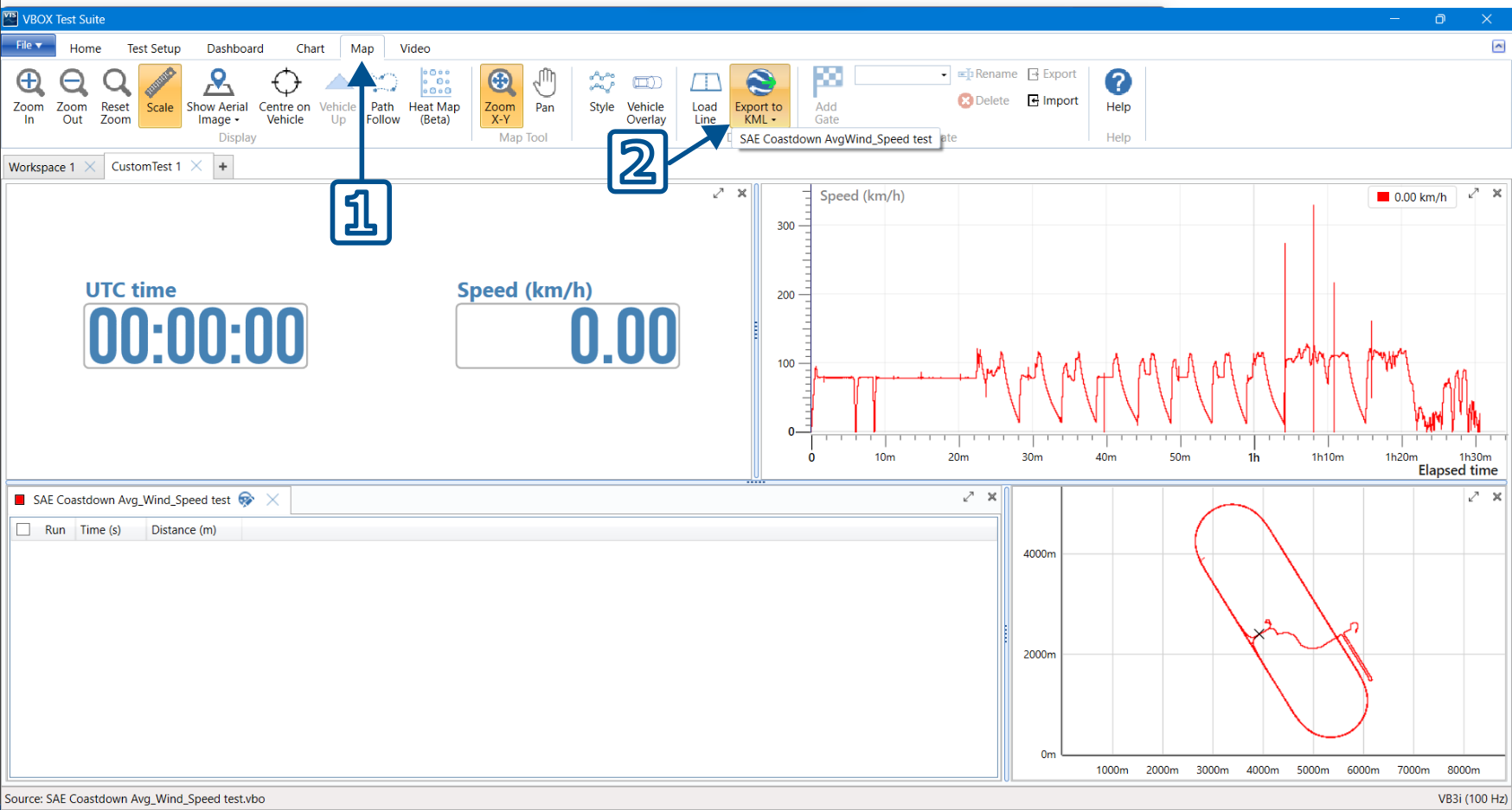
Menu Directions: Test Setup -> Report -> Export
File Options: .XLSX, .PDF and .DOCX
Functions: Exports a report generated from the test result data in different easily accessible document types. These reports are created to make it easier to interpret and distribute the data. This function os not available in Workspace.
Export Gates Data
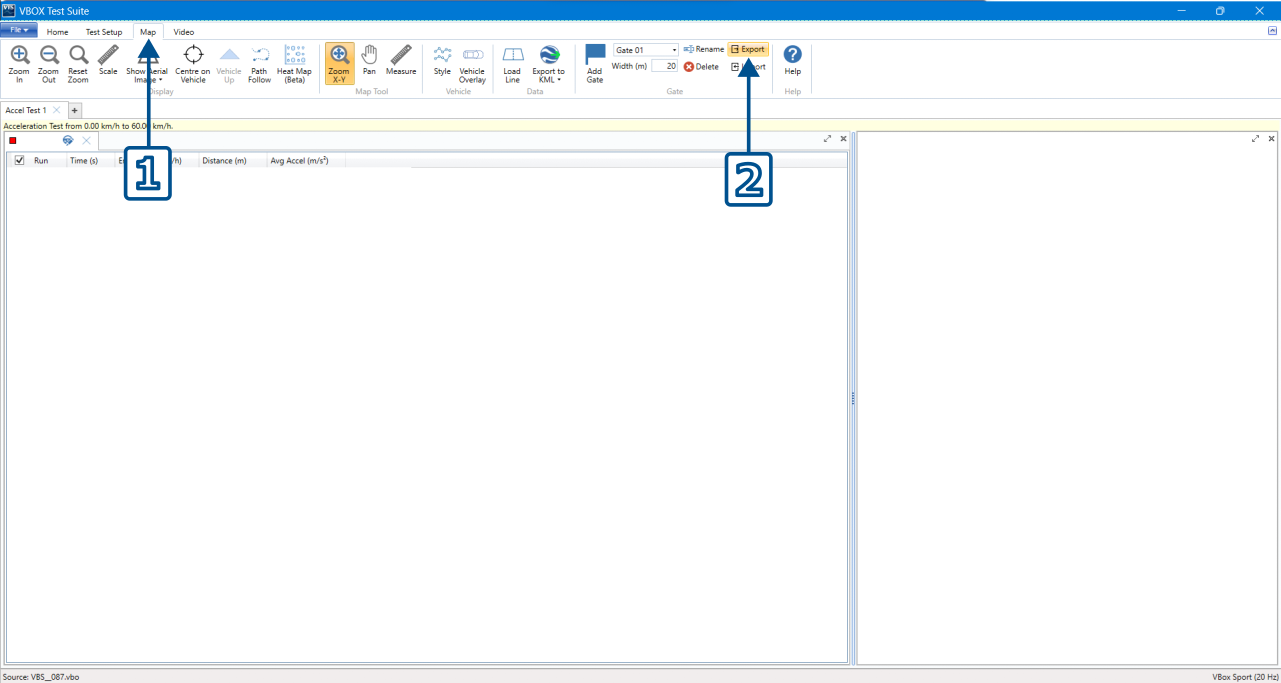
Menu Directions: Map -> Export (Gates)
File Options: .SPL only
Functions: Exports the geographic data relevant to the X,Y position of 2 points that form a ‘Gate’ that a vehicle may drive through to trigger a condition. This data is useable in various VBOX products for lap timing purposes and in the Circuit Tools software.
How to Select Runs to be Exported Separate From a Report
- Open VBOX Test Suite and load data from the File tab.
- Select the test type to generate results.
All runs will be automatically selected for initial inclusion. You can choose specific runs by unticking the check box next to Run. - Click the checkboxes next to the runs you wish to include in the report.
- When you click Export, a drop-down menu will appear in the Test subsection of the Test Setup ribbon.
Save as CSV to export the results in an Excel-friendly format, allowing the data to be reviewed sample by sample.
Save as Text to export the results so you can view them in Notepad.
Save Run As will isolate that particular run and export it as its own .VBO file that you can reimport and open in Test Suite.