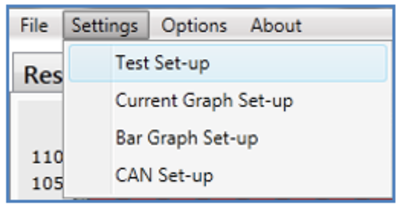
Configuration of the setup criteria can be done using the Test Set-Up option, found under the settings toolbar.
Adjust Units
The units for speed, distance and acceleration can all be changed. These changes are reflected in all other windows in the software.

Hardware Trigger
Configure a minimum speed for the hardware trigger to prevent unwanted trigger activation from being used in the results generation. Also configure whether the reported trigger speed is from the first measured sample after trigger activation, or a speed value interpolated between the reported and previous sample.

End Speed
Determine the speed that the brake test finishes and results are reported from.

Corrected Distance
Determine the ‘corrected distance start speed’, either by a specific value or an auto corrected value to the nearest 10km/h (or mph).

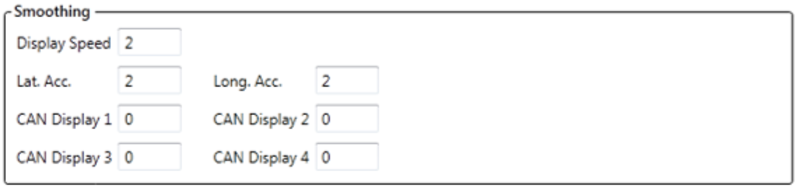
Smoothing
Some input channels can be inherently noisy so require a certain level of smoothing to create representative results. Use option to apply desired levels of smoothing to speed, acceleration and all CAN channels in this option.
Software Trigger
Configure a starting speed for the software to create separate braking distances from.
This should be utilised when a hardware trigger is not available.

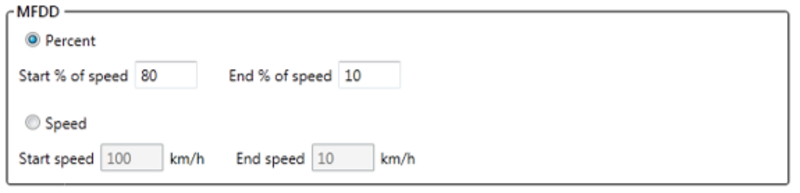
MFDD
Adjust the speed values used in the MFDD calculations. Also chose between actual speeds or percentage of trigger/start speed.
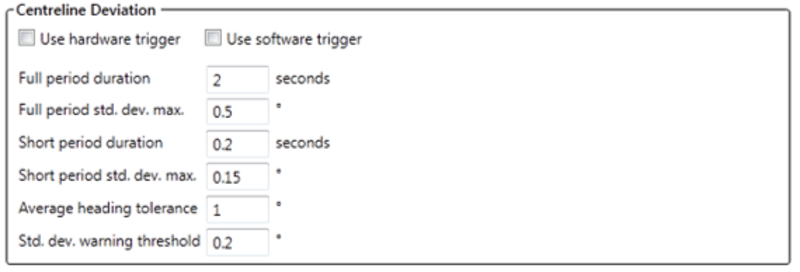
Centreline Deviation
Adjust settings for centre line deviation computation.
Full period duration - Time before trigger activation, this is what is used to calculate the centre line reference heading.
Full Period std. dev. max – The maximum allowed heading deviation during test.
Average Heading Tolerance – The allowable tolerance of heading change during centre line deviation.
Std. dev. Warning threshold – Heading deviation threshold before results displayed with red warning text.
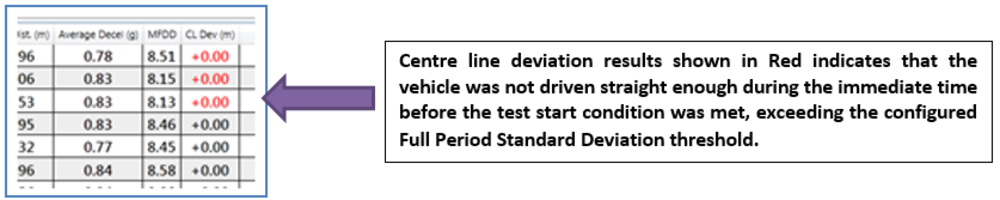
Note: Centreline Deviation results in Red: